 Dependable Dispatch
Admin
This part is for admins. Open Admin in the menu. The tabs are Overview, Clients, Users, Technicians, Facilities, Recurring and Permissions.
Dispatchers see Clients, Technicians and Facilities, to look things up but not change them. They can still send techs their sign-in links and edit a facility's standing-order templates.
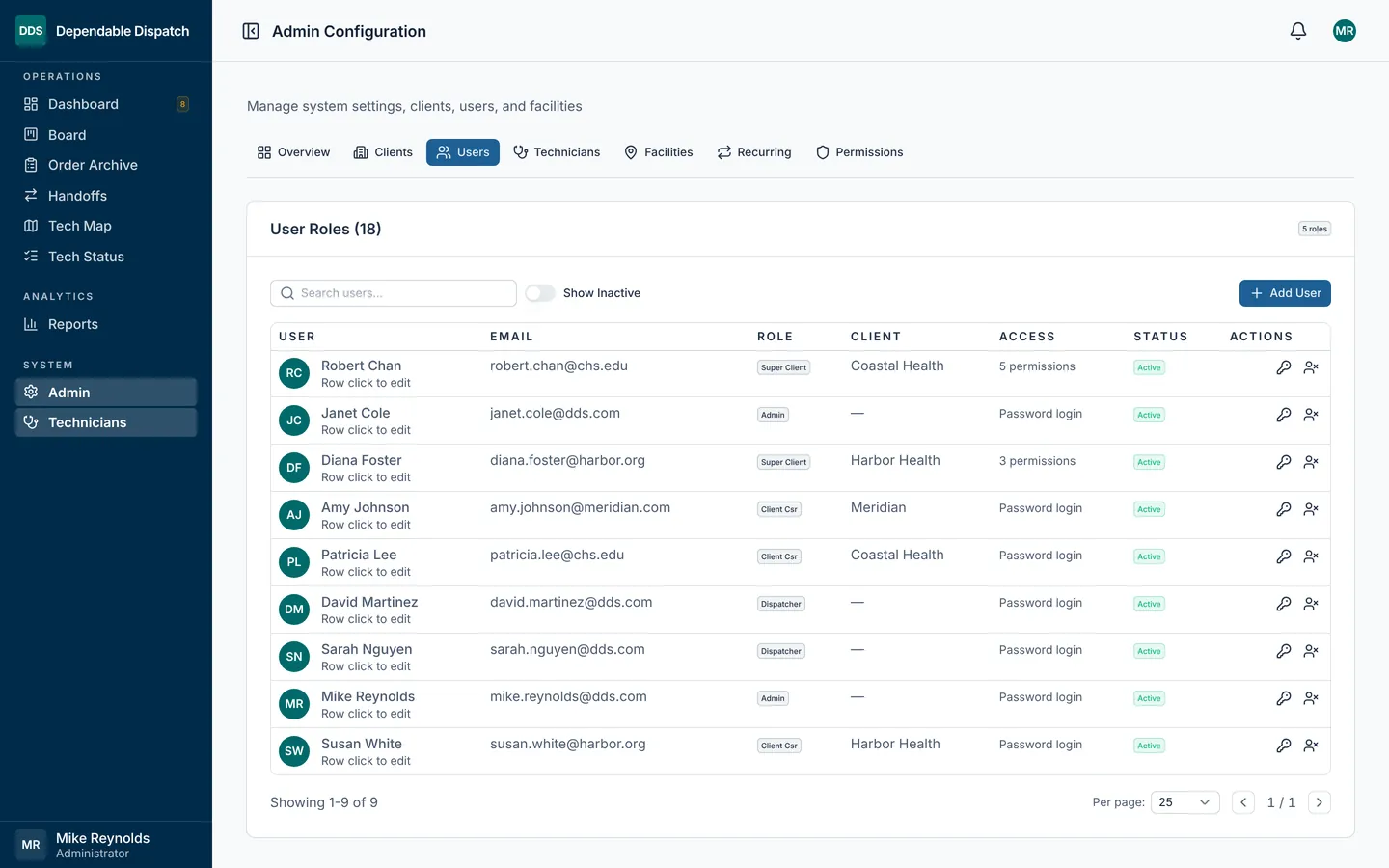
Users
Users are office and client staff. Techs have their own tab.
- Add User creates an account. Pick the role and, for client staff, the client.
- Click a row to edit it. A new or reset password must be 6 to 24 characters, typed twice.
- Accounts are never deleted. To disable one, click the person icon at the end of its row. Click it again to turn the account back on. A disabled user is signed out at once.
Technicians
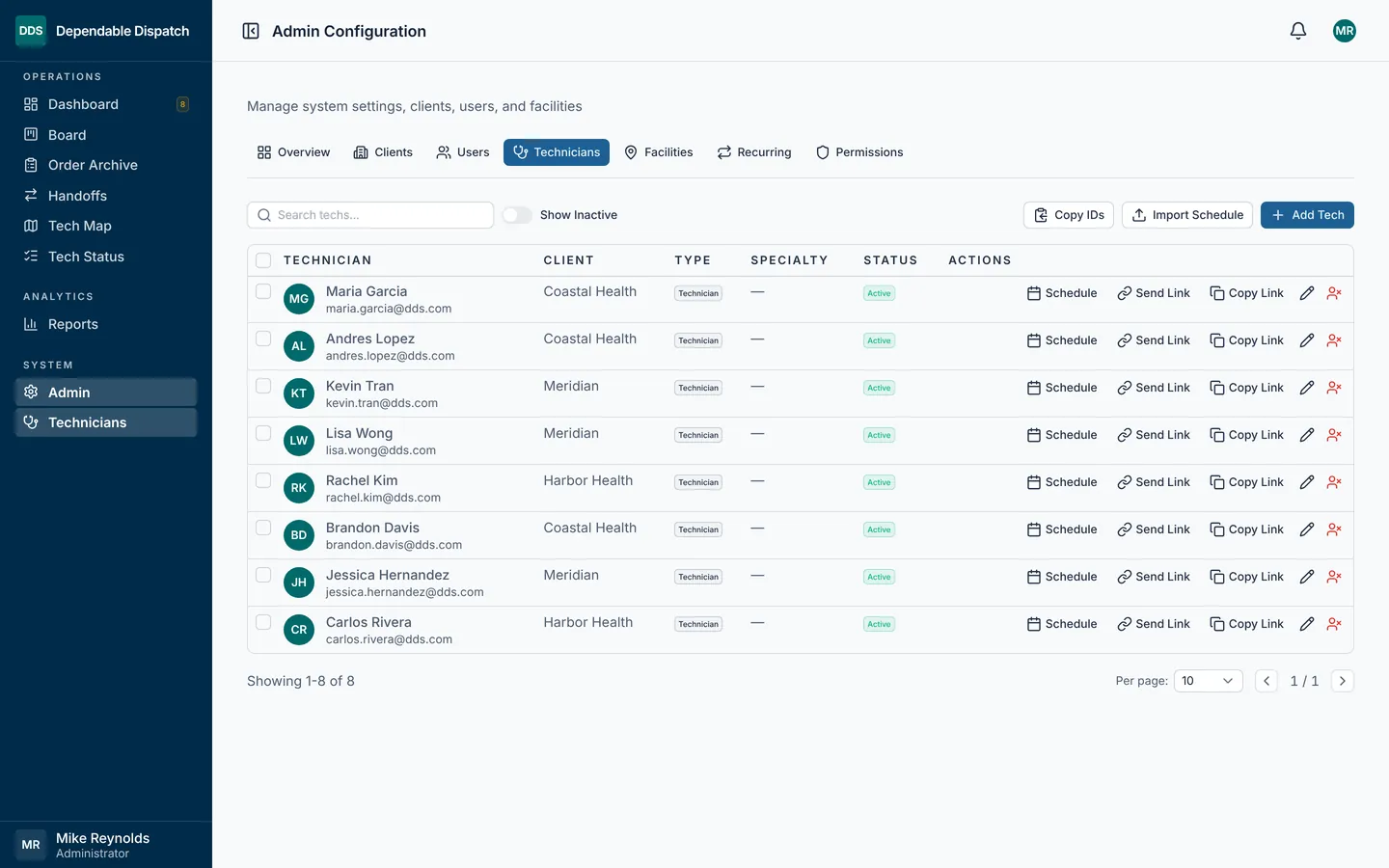
- Add Tech creates a tech. A tech needs a client. An email is optional, but without one Send Link can't reach them: use Copy Link instead.
- Click the pencil to edit a tech's name, phone, client, Tech Type (Technician, Lead or Supervisor) and Specialties.
- Schedule opens the tech's shifts. A tech can have more than one shift a day, and an overnight shift ends the next morning.
- Send Link emails the tech a sign-in link. Tick several techs to send links to all of them at once.
- Copy Link copies the tech's 24-hour sign-in link, ready to paste into a text. If your browser won't copy it, the link opens in a small window. Click Copy link there.
- Copy IDs copies the list of tech IDs for a spreadsheet.
- The person icon at the end of a row makes a tech inactive. Turn on Show Inactive to list inactive techs.
Open a tech's sign-in link only on the tech's phone or in a private browser window. In your own browser it would sign you out and the tech in. The app warns you before that happens.
For X-ray and ultrasound techs, name that work in Specialties: X, XRAY, US, US-ECHO or ULTRASOUND. The app then skips the miles boxes on their phone. If Specialties is blank, or names only EKG, ABG or PICC, the tech still enters miles.
Import tech schedules
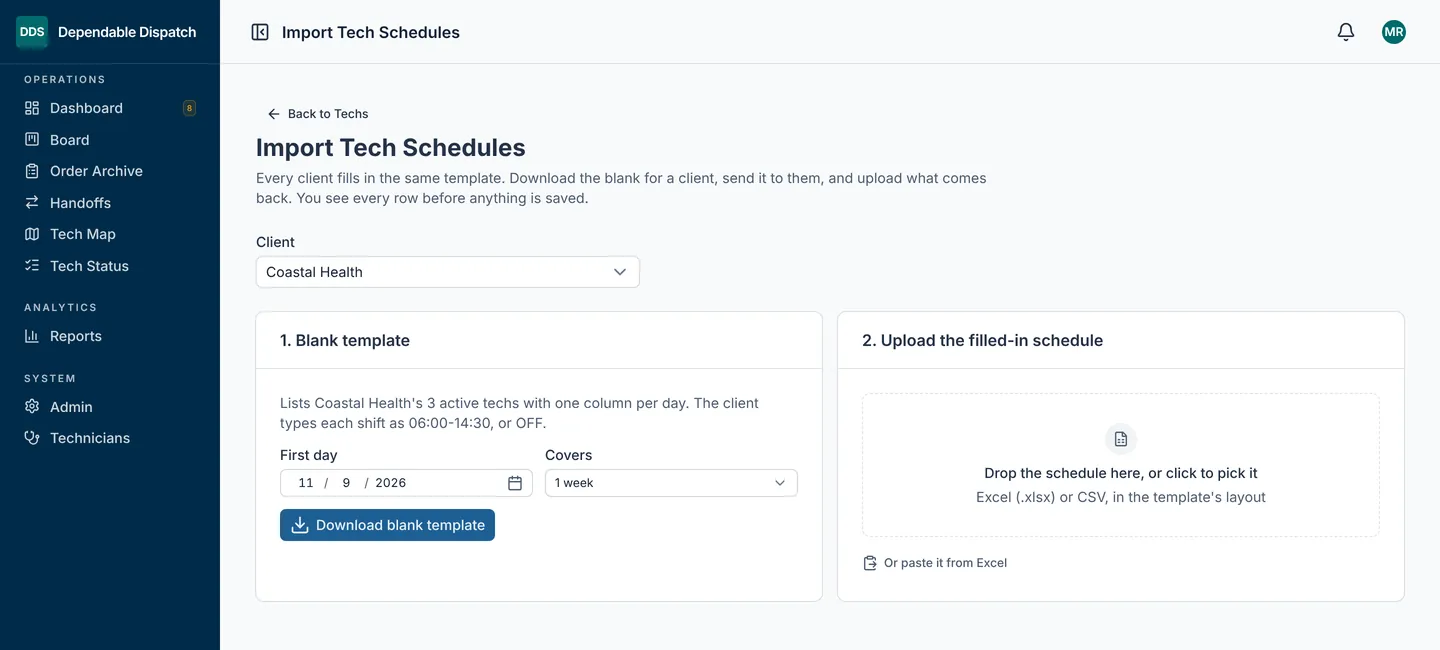
Load a client's tech shifts from one spreadsheet. Go to Technicians and click Import Schedule.
- Pick the client, the first day and how many weeks (1, 2 or 4).
- Click Download blank template. It lists the client's active techs, with one column per day.
- Send it to the client. They fill in each shift the way they would write it:
06:00-14:30,6a-2:30p,OFForon call. An overnight shift such as22:00-06:30ends the next morning. - Upload the filled-in file (Excel or CSV), or paste it straight from Excel.
- Review the rows. The app checks every row before it saves anything. It skips a row with a problem and says why: the tech isn't on file, is inactive or belongs to another client; a time can't be read; a shift runs over 16 hours; or shifts overlap.
- Click the Import button. It says how many shifts and techs it will save.
The import replaces shifts only for the techs on the file, and only on its dates. A tech left blank on the file keeps their shifts.
Facilities
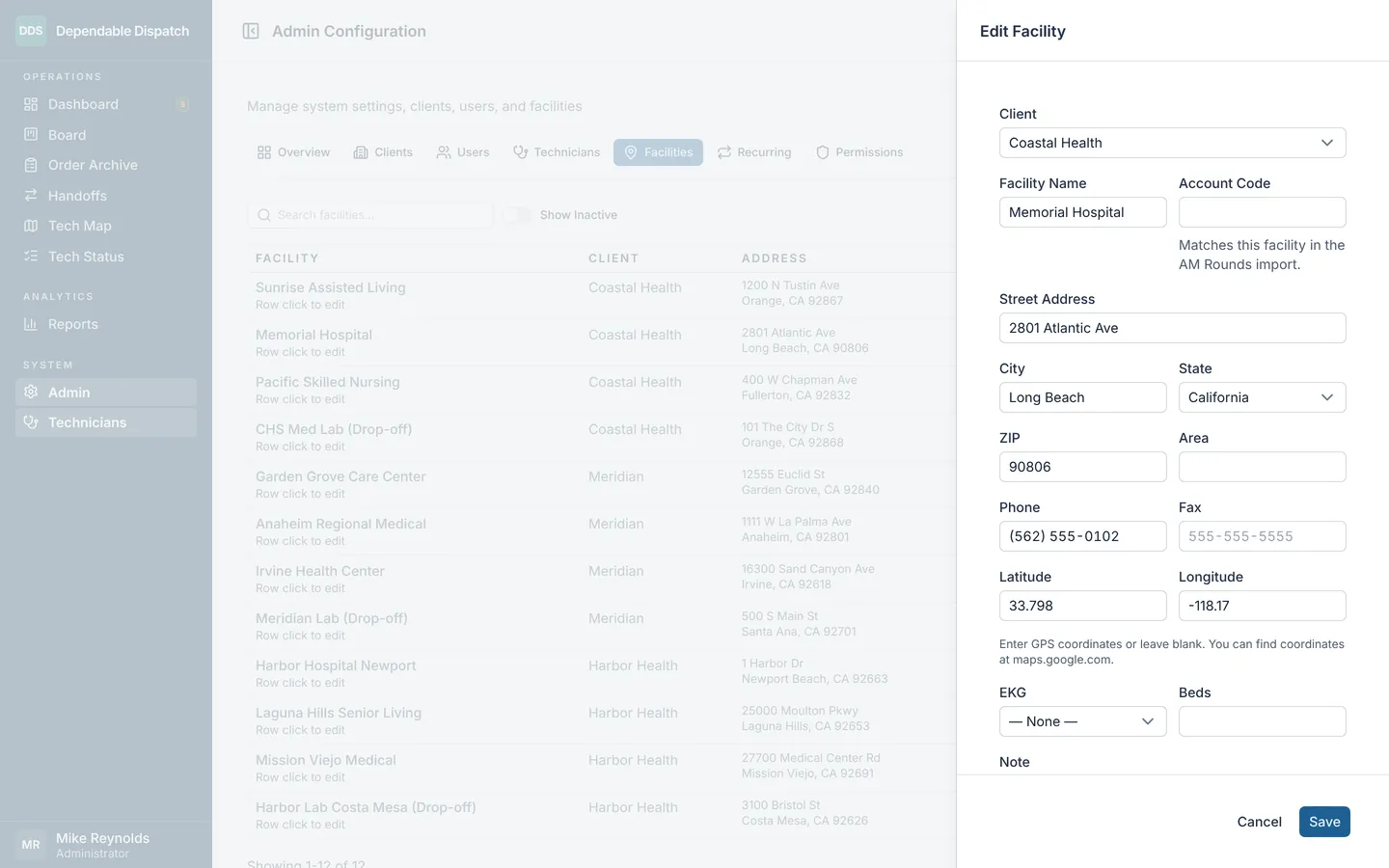
Click a facility to edit it.
- Account Code matches the facility to its row when a client emails its AM Rounds list.
- Latitude and Longitude put the facility on the Tech Map. Without them it doesn't appear.
- Forbidden Techs: tick a tech to keep them away from this facility. Assign and AM Rounds then refuse to give them its orders.
- The facility's standing orders are listed with their days and weeks. Every means every week. The 1st to 5th rows pick a week of the month.
- Facilities are never deleted. To retire one, switch Active off. Its orders, stops and mileage stay as they were.
Clients
Each client has a name, a short name, a table color and break minutes. The table color is the row color on the Dashboard, Board, Tech Status and Order Archive. A dark color is lightened just enough to keep the text readable. Add Client creates a new one.
View the app as another role
Admins and dispatchers can check what another role sees. Open the menu under your initials and pick a View as item, such as View as Tech or View as CSR. Pick Restore my role to go back.
You stay signed in as yourself the whole time. Anything you save while viewing is saved under your name, with your own permissions.