 Dependable Dispatch
Getting started
Sign in
Open https://nuxt-app.dependabledispatch.com in Chrome, Safari or Edge.
- Office and client staff sign in with an email and password.
- Techs sign in with a link from dispatch. See Techs.
Office and client staff are signed out after two hours without activity. The sign-in page then says "Your session has timed out." Your email is still filled in, so type only your password.
If you open a link to an order while signed out, the app takes you to that order once you sign in.
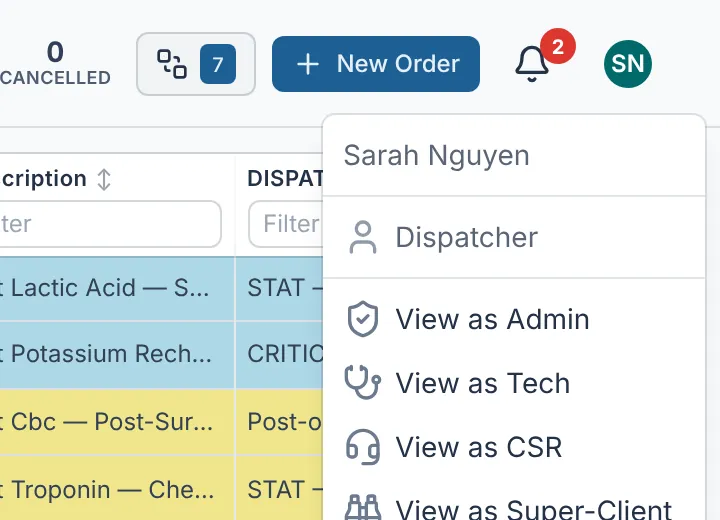
What each role sees
| Role | Main screens |
|---|---|
| Dispatcher | Dashboard, Board, Order Archive, Handoffs, Tech Map, Tech Status, Reports. In Admin, can look up clients, techs and facilities but not change them. |
| Admin | Everything a dispatcher sees, plus editing users, techs, facilities and clients. |
| Tech | My Route, on a phone. |
| Client CSR | New Order and My Orders, for their own client only. |
| Super client | New Order and Orders, for their own client only. |
On a computer the menu runs down the left side. On a phone, tap the ☰ button at the top left to open it.
Order statuses
| Status | Meaning |
|---|---|
| Pending | Not on any tech's phone yet. |
| Assigned | A tech has the order but hasn't confirmed it. |
| Confirmed | The tech accepted it. |
| En Route | The tech is driving to the facility. |
| On Site | The tech is at the facility. |
| Departed | The tech finished and left. The specimen is in their car. |
| Completed | The specimen was dropped at the lab, or the work is finished. |
| Cancelled | The order is closed without being done. |
A held order is Pending with a tech's name on it: the tech has it, but it isn't on their phone yet.
Dispatch can set any status. Techs move an order forward from their route, and can undo their last step with buttons such as Wrong stop and Undo Arrival.
Order types
- Routine: an ordinary draw.
- Timed Draw: a draw inside a set window, with PICC line, dosage and level details.
- UTO: a follow-up for a draw the tech was unable to obtain.
- Redraw: a second draw, with the reason the first one failed.
- Check All: a round of the whole facility, usually made from the facility's standing order. It has no single patient, so the patient column reads "Check All".
- Delivery: a delivery run, not a patient draw.
STAT is not a type. Any order can be marked STAT.
Colors
- Red on an order means STAT.
- Amber marks Special Instructions on the tech's screens.
- Magenta marks a cancel notice on the tech's phone.
- Row colors on the Dashboard, Board, Tech Status and Order Archive are each client's table color.
Dark mode
The app is light until you choose dark. The choice stays on that computer or phone only.
- Office and client staff: open the menu under your initials (top right) and tick Dark mode.
- Techs: tap the sun button at the top of your route.
When the app updates
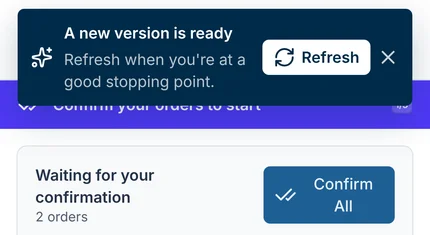
When a new version is out, a navy bar reads A new version is ready. Click Refresh when you reach a good stopping point. Nothing reloads by itself, and the bar never covers an open form. The X hides it for 30 minutes.
Type dates and pick from lists
- Type a date as eight digits with no slashes:
11122026becomes 11/12/2026. Or click the calendar button at the end of the box. - Lists with a search box narrow as you type. All Clients, Unassigned and None stay at the top of their lists. Pick one to clear your choice.